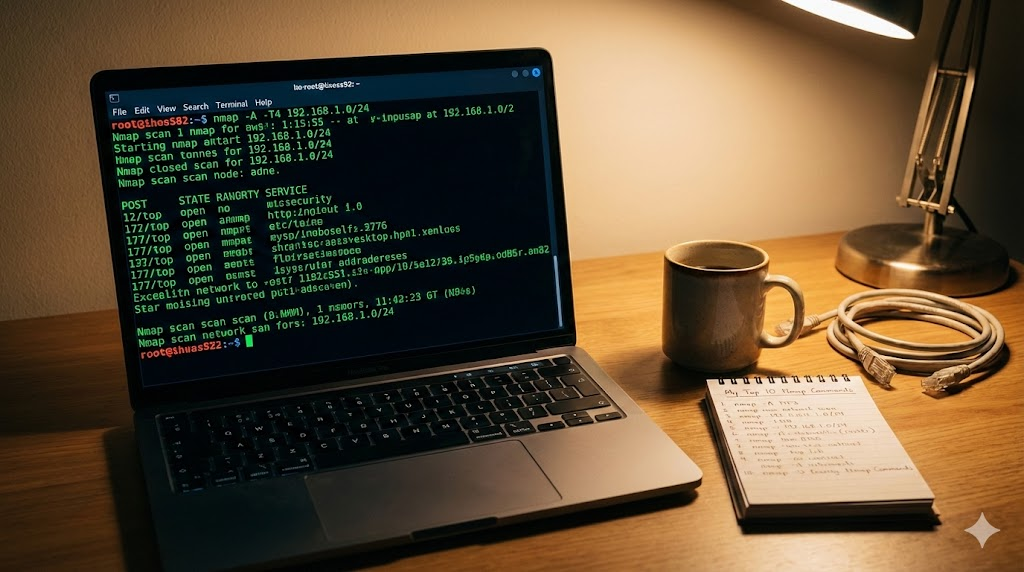
I remember the first time I stared at a blinking terminal cursor. I was trying to figure out what devices were actually connected to my Wi-Fi, and it felt overwhelming. Then I discovered Nmap.
Nmap (Network Mapper) is the industry standard for network scanning. It looks like magic in the movies. In reality, it is just a really efficient way to knock on doors and see who answers.
If you are just starting out in cyber security or network administration, you don’t need to memorize the entire manual. These are the 10 commands I use almost every single day.
1. The “Hello World” Scan
This is where everyone starts. If you just want to scan a single IP address or domain to see which ports are open, this is it. It scans the most common 1,000 ports by default.
nmap 192.168.1.12. The “Talk to Me” Scan (Verbose)
Sometimes Nmap sits there silently for a long time, and I get impatient. Adding the -v flag tells Nmap to give you updates as it finds things rather than waiting until the very end to show you the results.
nmap -v 192.168.1.13. The “Sniper” Scan (Specific Ports)
I don’t always need to check 1,000 ports. Sometimes I just want to know if a web server is running. You can save a lot of time by specifying exactly which ports you care about using -p.
nmap -p 80,443 192.168.1.14. The “Who’s Home?” Scan (Ping Sweep)
This is my go-to when I join a new network. I don’t care about open ports yet. I just want to know which IP addresses are active. The -sn flag (formerly -sP) tells Nmap to just “ping” the targets and skip the port scan.
nmap -sn 192.168.1.0/245. The “In a Hurry” Scan (Fast Mode)
If the standard scan is taking too long, use -F. This limits the scan to the top 100 most common ports instead of the top 1,000. It is great for a quick diagnostic.
nmap -F 192.168.1.16. The “What Are You Running?” Scan (Version Detection)
Knowing a port is open is good, but knowing what is running on it is better. The -sV flag probes the open ports to find out service names and version numbers. This is critical for finding outdated software.
nmap -sV 192.168.1.17. The “Operating System” Scan
Curious if a device is a printer, a Windows laptop, or a Linux server? The -O flag analyzes how the device responds to network packets to guess its operating system. Note that you usually need sudo (root privileges) for this one to work well.
sudo nmap -O 192.168.1.18. The “Gimme Everything” Scan (Aggressive)
When I want maximum information and I don’t care about being “noisy” on the network, I use -A. This enables OS detection, version detection, script scanning, and traceroute all at once. It represents the heavy hitter option.
nmap -A 192.168.1.19. The “Save It For Later” Scan
I learned this the hard way. Always save your output. If you close your terminal, that data is gone. The -oN flag outputs the results to a normal text file so you can read it later.
nmap -oN results.txt 192.168.1.110. The “Stealth” Scan
This is the default scan when you run Nmap as root, but it is worth knowing why. The -sS (TCP SYN) scan initiates a connection but never finishes it. It is faster and slightly harder for firewalls to log than a full connection.
sudo nmap -sS 192.168.1.1Getting Started
Nmap is a powerful tool, but you only need a handful of commands to get 90% of the work done. Fire up your terminal (or command prompt) and try scanning your own home router to see what you find.